FPS Optimization Guide
Roleplay servers often push the limits of what Unturned was originally designed to handle, which can introduce some performance headaches.
This guide will help you increase your FPS and reduce any lag you might experience in Unturned. Most of this information applies to all servers, not just ours.
Overview
Performance in Unturned is usually measured by two things: FPS and Ping. With FPS, higher is better. With Ping, lower is better.
- FPS: Frames per second — how fast your game is rendering
- Ping: Measured in milliseconds — how fast the server responds to your packets
INFO
Ping in Unturned is tied to the game's tickrate, so lag in-game can often affect the displayed ping and make it look higher than your actual network latency.
General Recommendations
- Use a wired connection or 5GHz Wi-Fi to minimize lag
Details
Wi-Fi (or any wireless connection) will always be inferior to a wired connection due to RF interference and often buggy drivers. Some laptops that ship with Realtek or Mediatek Wi-Fi chipsets are known to have issues.
TL;DR: Nothing beats a wired connection. Just buy a Cat6 cable.
Close other apps (Chrome, Discord, Spotify, etc.) while playing
Upgrade your PC (and stop buying 3060s)
Details
Why do half of you buy RTX 3060s? Why? I'm not shaming you because you didn’t spend more — I’m shaming you because you likely could’ve bought a used RTX 3070 or RTX 2080 Ti for the same price.
If you bought an RTX 4060, you're just an idiot.
Also, prebuilts suck. Stop buying them.
Launch Options
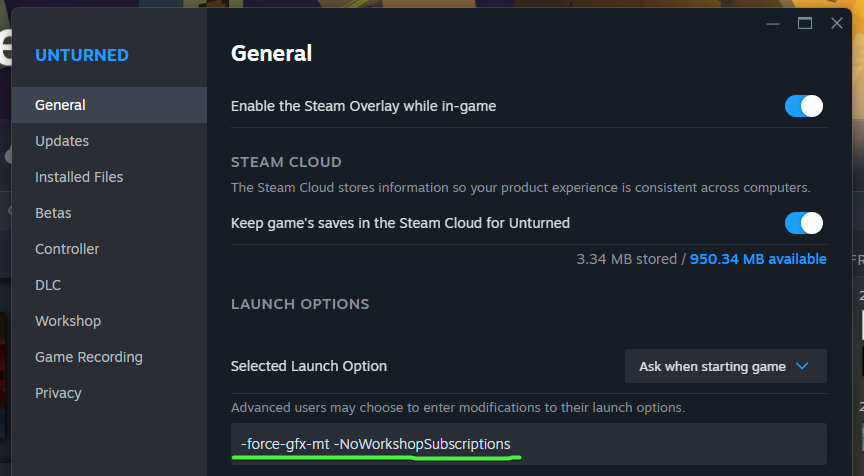
Using these launch options can help with performance and compatibility on most systems:
-force-gfx-mt -NoWorkshopSubscriptionsBreakdown
-force-gfx-mt: Uses Unity’s multithreaded rendering pipeline-NoWorkshopSubscriptions: Prevents asset conflicts from subscribed workshop mods
How to Set Launch Options
- Open Steam
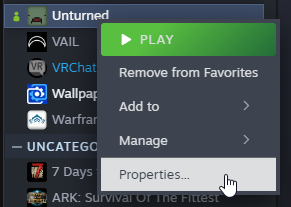
- Right-click Unturned and click Properties
- Under Launch Options, paste the options above
- Launch Unturned
Graphics Settings
Your in-game graphics settings can make a huge difference in FPS, especially in crowded areas like main cities.
INFO
Regardless of how powerful your PC is, Unturned is not designed to run at max settings on most roleplay servers.
It's almost always better to tweak your settings for a smoother experience.
Adjusting Graphics Settings
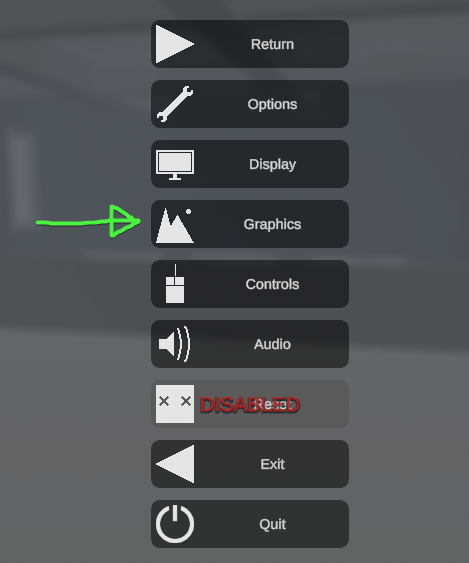
- Press
ESC - Click Graphics
Recommended Settings
These should give the best balance of visuals and performance for most modern PCs. If you're on a lower-end rig, consider lowering some (like draw distance) further.
For best results, click Restore Defaults, then change:
- Max Draw Distance:
100% - Nearby Draw Distance:
100% - Landmarks:
Low - Terrain Transition:
On - Anti-Aliasing:
FXAA - Lighting Quality:
Ultra - Water Quality:
High - Scope Quality:
Medium - Render Mode:
Deferred
Which Settings Matter Most?
If you’re unsure what affects FPS the most, try toggling each setting and see how your FPS changes.
Diagnosing Network Issues
Before reporting lag or network problems, it’s a good idea to check your own connection for packet loss or jitter — both can cause lag spikes or random dropouts in-game.
Use Cloudflare Speed Test, as it shows the info you actually need. Let the test fully complete.
Example result:
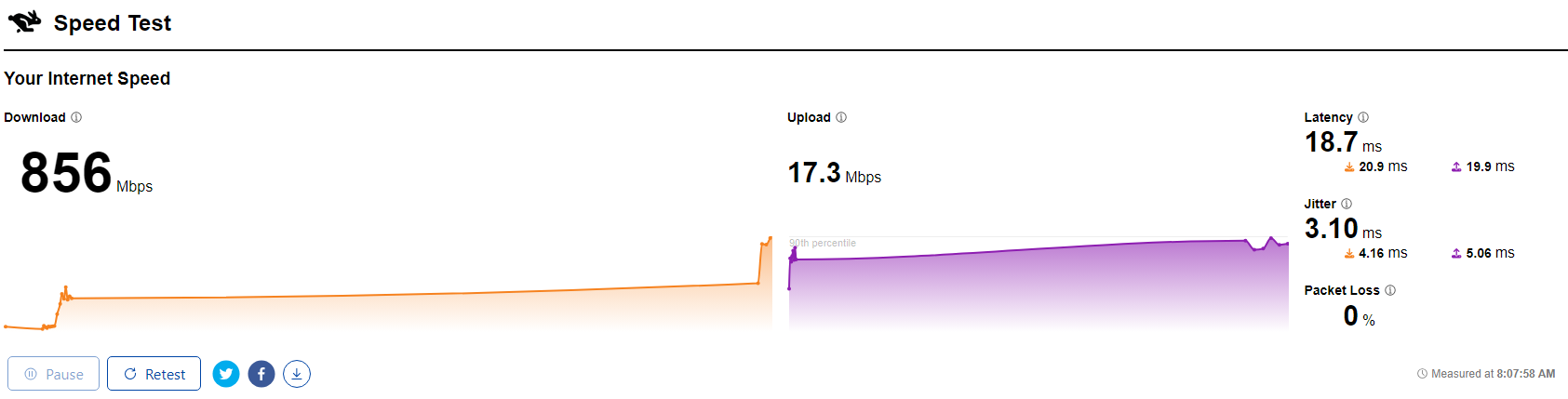
The important numbers for gaming are on the right — download/upload speeds don’t matter much for Unturned.
- Latency should be under 100ms (it tests your nearest Cloudflare server)
- Packet Loss should be 0% or <0.1%
- Jitter should be less than half your latency
What if something looks off?
If your test results are bad, the issue is likely your connection.
Try these:
- Use a wired connection
- Reboot your router
- Contact your ISP (internet service provider)