Resolving Asset Issues
If you're running into asset-related errors when joining a server, it's likely due to corrupted or outdated files on your end. Fortunately, this is usually a quick fix — just clear out your workshop files and cache.
Video Tutorial
Fun Fact: Even some smaller servers that aren't affiliated with us link to this guide — it's just that effective.
Step-by-Step Text Guide
Make sure Unturned is completely closed before you begin. For this to work properly, follow every step — don’t skip anything.
Turn Off Workshop Mods
Open Steam
Right-click on Unturned and select Properties
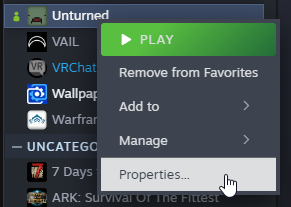
- Navigate to the Workshop tab

- Click on Show Advanced Options

- Under Locally Enabled Items, hit Disable Filtered

Remove Workshop Files
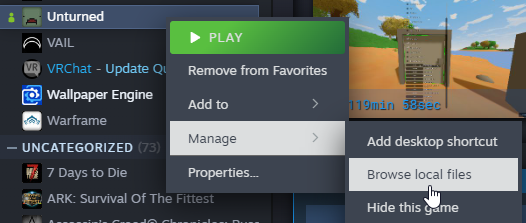
- Right-click Unturned in Steam → Manage → Browse local files
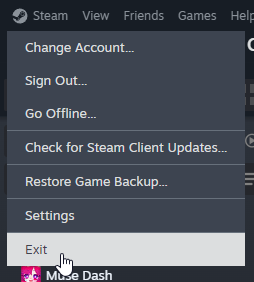
- Click Steam in the top-left menu and choose Exit
- In File Explorer, click steamapps in the address bar

- Go to workshop → content → 304930



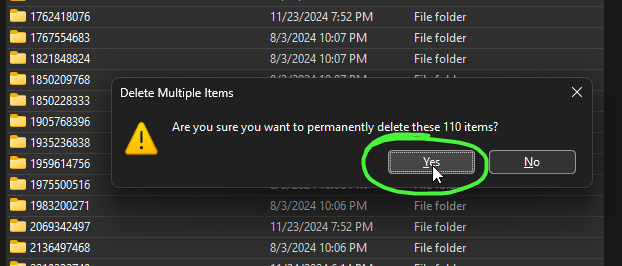
- Press
Ctrl + A, thenShift + Delto permanently delete everything
Clear Workshop Cache
This is arguably the most important step. Don’t skip it. Seriously. If you ignore this and ask for help later, I will not hesitate to smite you.
Reopen Steam
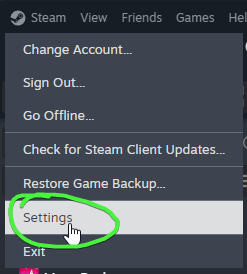
In the top-left, click Steam → Settings
- Go to the Downloads tab
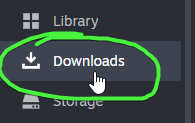
- Hit Clear Cache next to Clear Download Cache

- Let Steam restart completely