Clipping Guide
FNX: City RP — like most serious RP servers — strongly encourages players to use clipping software during gameplay. It’s simple to set up and can be a lifesaver if you ever need to submit a support ticket.
There are several good options for clipping; go with whatever suits your system and style.
Using Medal (super easy)
Medal is a lightweight and beginner-friendly app that makes clipping moments from Unturned quick and seamless.
Head over to Medal's website
Click
Download for Windows(or your OS of choice)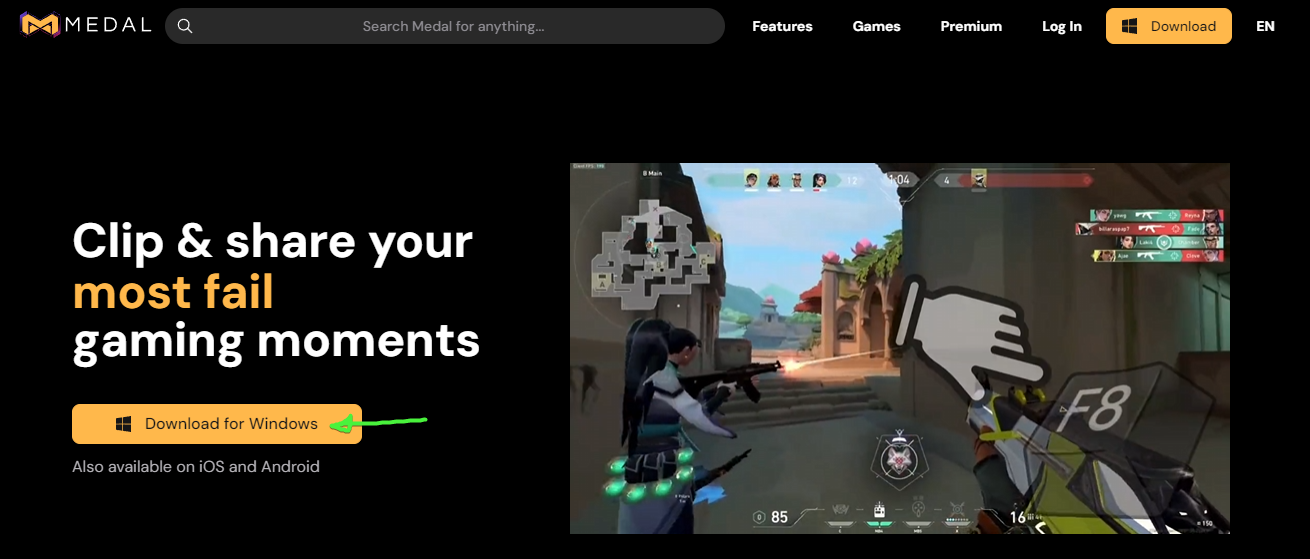
Run the installer
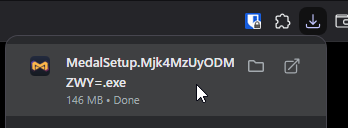
Wait for Medal to finish installing
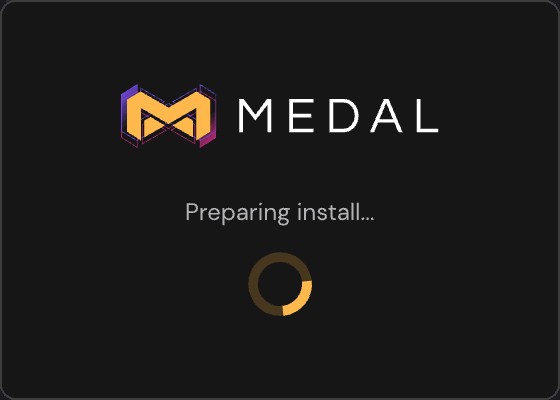
Log into your Medal account
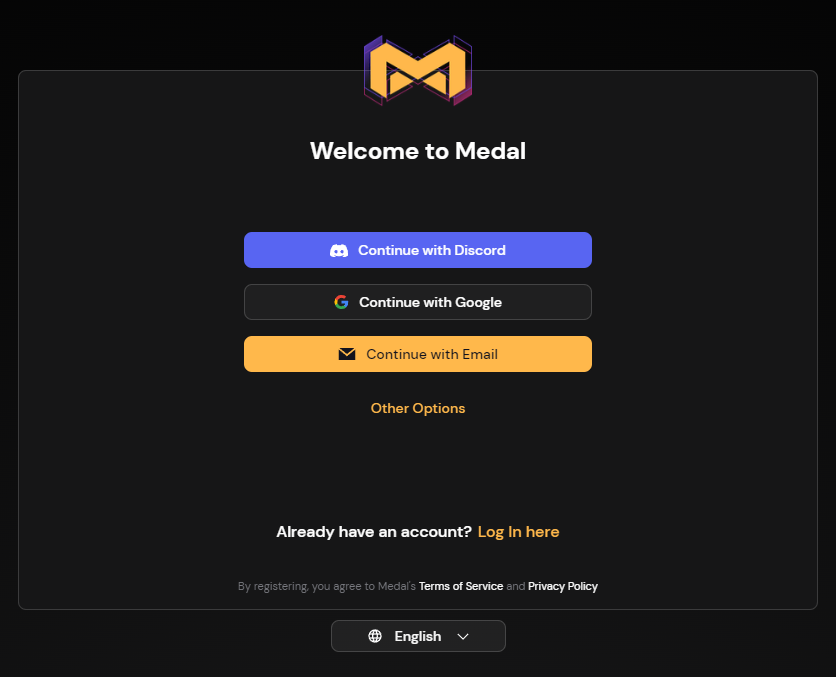
Choose
Clipping Games (Default)It’s a good idea to tweak your clip length here.
- Minimum: 1 minute
- Recommended: 2–3 minutes
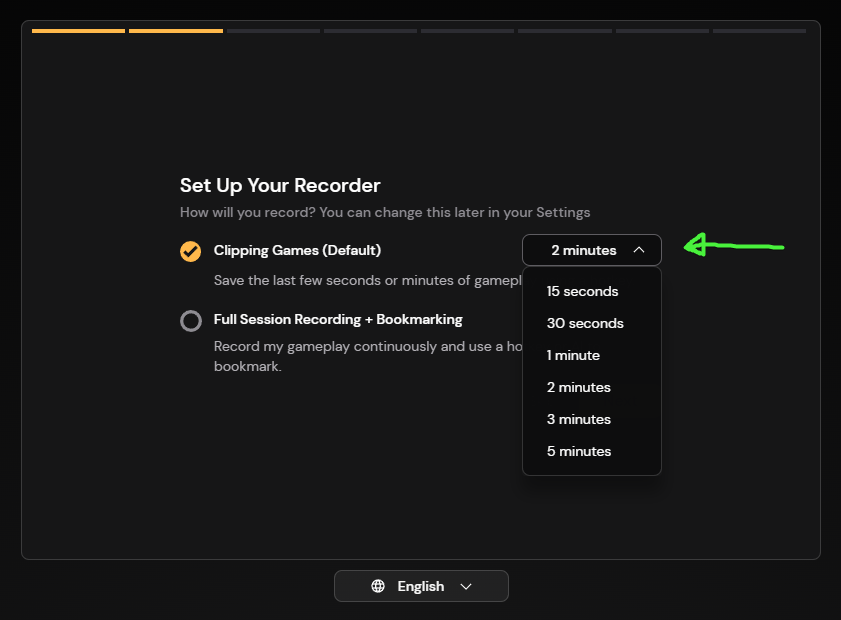
Adjust Recording Quality
You don’t need super high settings —
StandardorHigh Qualityis usually fine. Anything above that is just wasting space.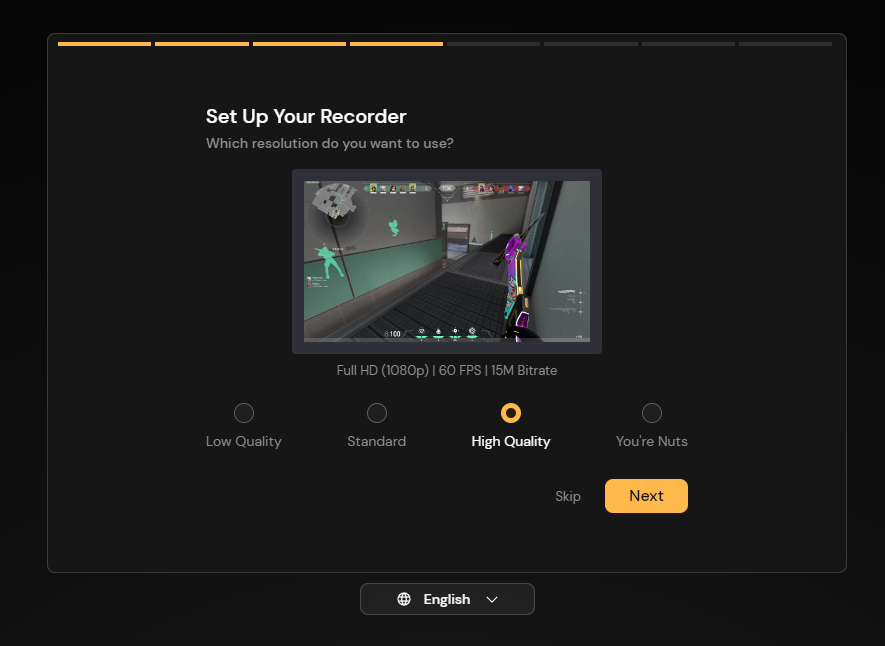
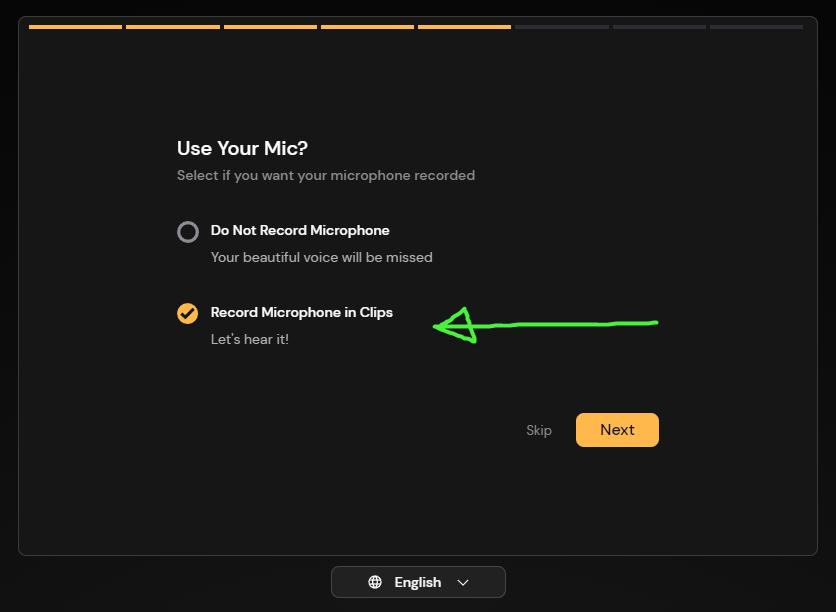
Enable Mic Recording
This is critical for roleplay clips. If your mic isn’t recorded, your clip might not be accepted in a ticket.
Set Up Your Audio Preferences
If unsure, go with
Record Only Game Audio— it keeps your clips clean and focused on the game.
Choose a Clip Hotkey
This is the key you'll press to save the last few minutes of gameplay.
Default:
F8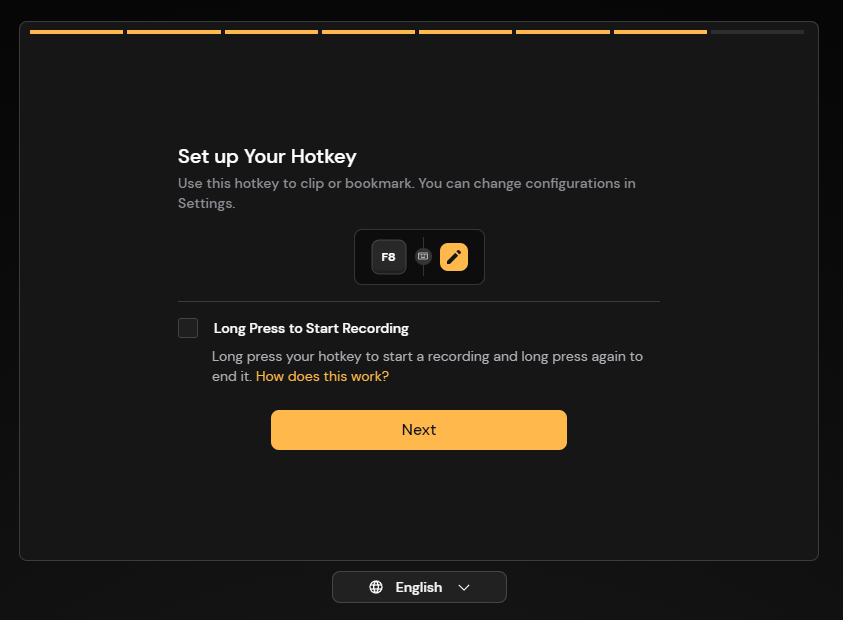
You're Good to Go
Just hit your hotkey whenever you want to capture something. You can view and edit your clips anytime by launching Medal.
Using NVIDIA App
Got a NVIDIA GPU? Prefer better performance or don’t want to log into an app? The NVIDIA App (which replaced GeForce Experience) is a solid alternative.
Visit NVIDIA's official site
Click
Download Now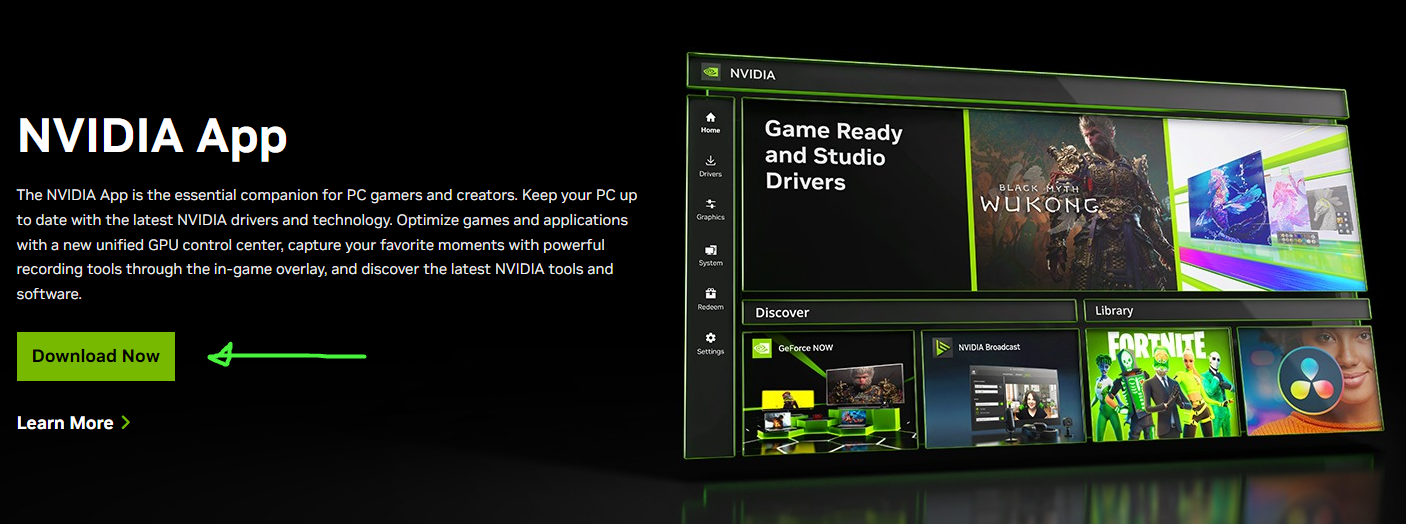
Run the installer
Let it install completely
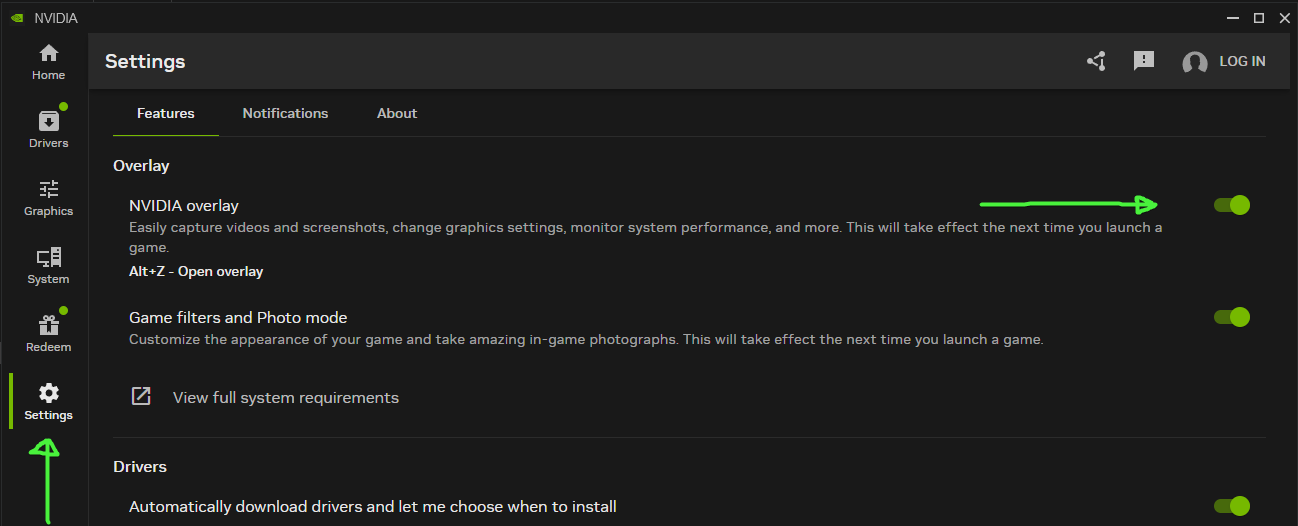
Enable the NVIDIA Overlay
This overlay is lightweight and needed for Instant Replay.
Press
Alt+Zto open the overlayClick on
Instant Replay
Toggle
Instant ReplayON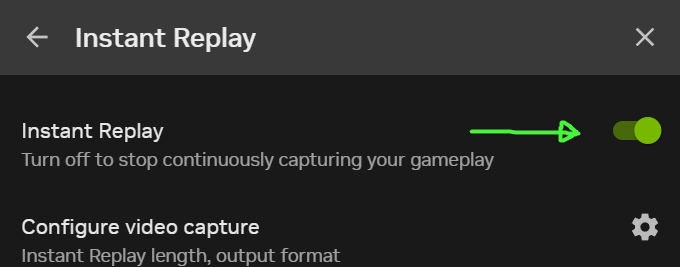
Done
You can now press
Alt+F10anytime to save a clip of recent gameplay.
Clips are saved by default toC:\Users\<your_username>\Videos\NVIDIA.
Using OBS Studio
OBS isn’t just for livestreaming — it can also capture clips using the Replay Buffer feature. This option is best for advanced users or streamers.
Assuming OBS is already installed:
Launch OBS
Go to
Settings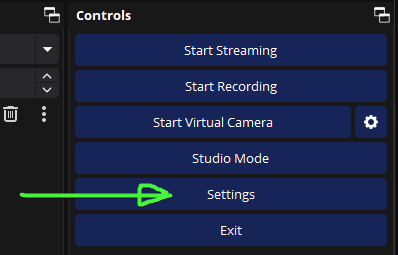
Navigate to the
Outputtab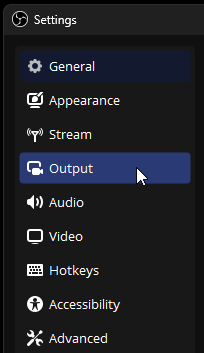
Enable
Replay BufferSet duration and memory settings to your preference.
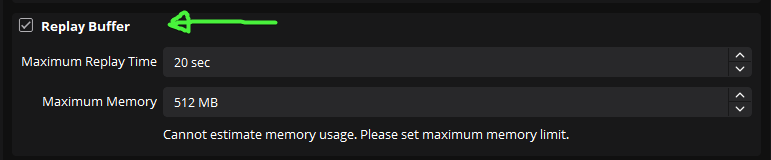
Click
OKto apply changesAll Set
You can assign a hotkey to save the buffer, or manually save from OBS. Your call.
Trimming Clips
Sometimes you only need a small section of a clip. Here’s an easy built-in Windows method for trimming:
Right-click your clip
Choose
Open With→Photos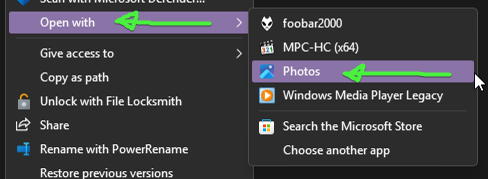
Click
Trim